



Smart Device Thermal Management: Common Failures and Fixes




Smart Device Thermal Management: Common Failures and Fixes
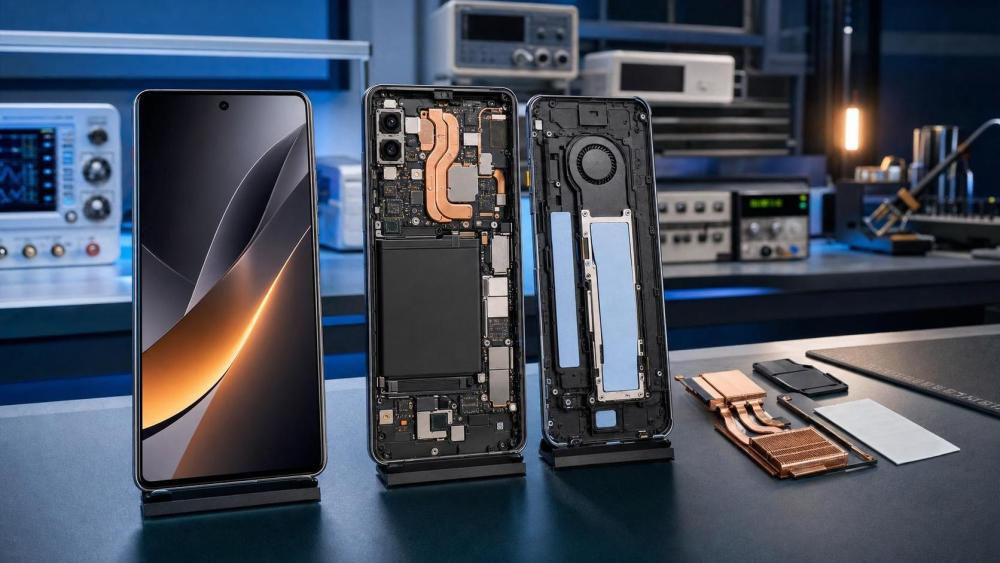
Smart device thermal management has moved from a design concern to a daily service issue.
When heat is not controlled, devices slow down, batteries age faster, and random shutdowns become harder to explain.
That creates repeat visits, poor repair outcomes, and avoidable warranty pressure.
In practical service work, smart device thermal management is rarely about one part alone.
It usually involves airflow, firmware logic, battery condition, sensor accuracy, and the way users actually operate the device.
This article breaks down common thermal faults, how to identify them, and what fixes hold up in the field.
The goal is simple: faster diagnosis, fewer returns, and more reliable smart device thermal management under real operating loads.
Why Smart Device Thermal Management Fails in the First Place
Most failures begin with a heat path that no longer works as intended.
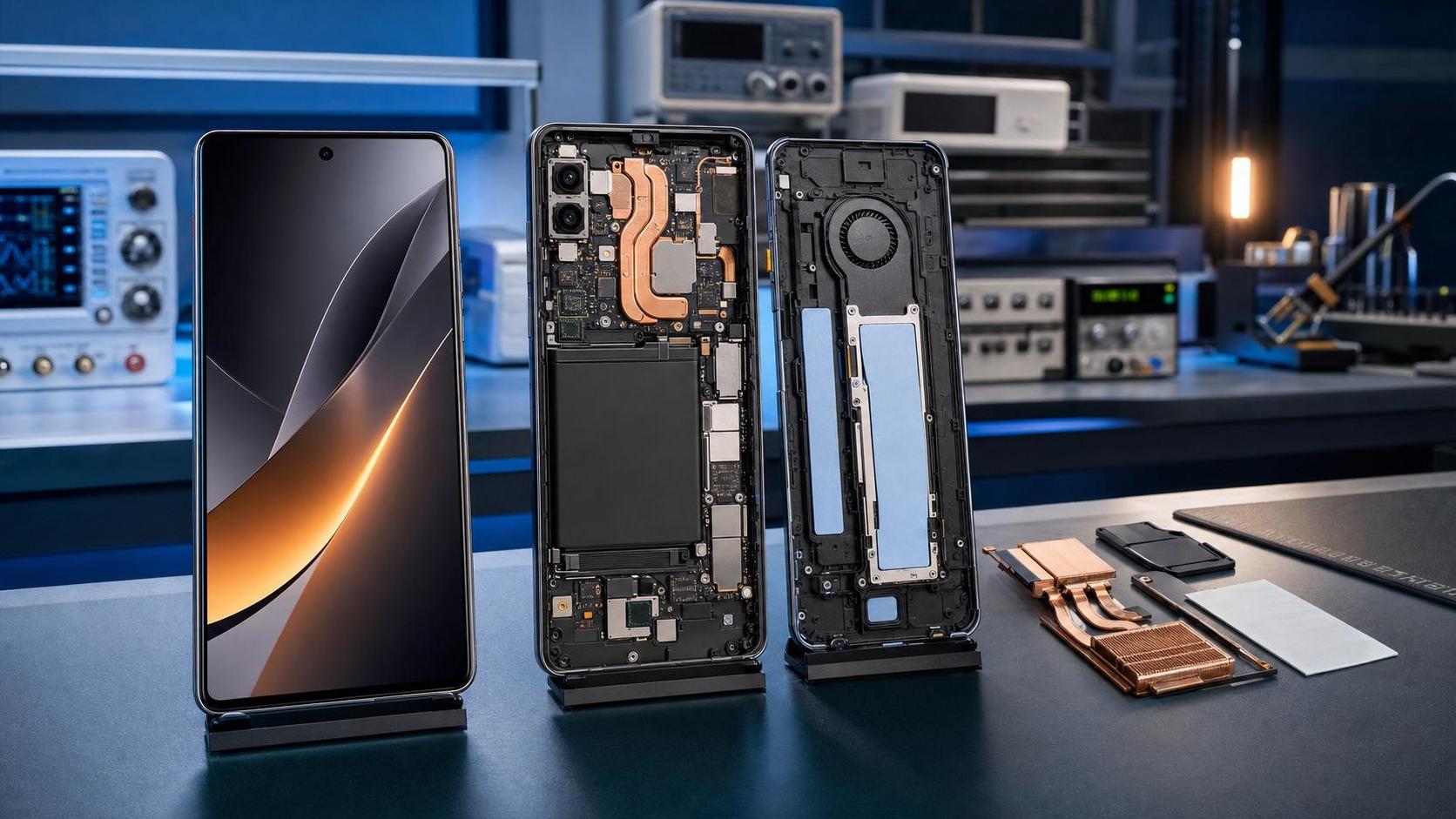
Dust blocks vents, thermal paste dries out, graphite sheets shift, and cooling fans lose speed.
In sealed devices, even minor warping can reduce contact between chips and heat spreaders.
Software also matters more than many teams expect.
A bad update can keep processors at high load, delay fan activation, or misread thermal sensor values.
Battery wear adds another layer.
A stressed battery generates more heat during charging and discharging, especially in compact smart devices.
From a service perspective, smart device thermal management fails when several small weaknesses overlap.
That is why symptom-based repair often misses the actual root cause.
Common Thermal Failure Signs You Should Not Ignore
Thermal problems rarely appear as a single alarm.
More often, they show up as unstable behavior that seems unrelated at first.
- Surface temperature rises quickly during normal tasks.
- The device throttles performance after a short workload.
- Charging slows down or stops before reaching full capacity.
- Battery drain increases after software updates or part replacement.
- Fans run constantly, pulse oddly, or remain silent under heavy load.
- The system restarts during gaming, video processing, or long network sessions.
Each symptom points to a different branch of smart device thermal management.
For example, hot charging usually suggests battery, power IC, or charging profile issues.
Fast throttling during normal operation often points to weak heat transfer, blocked airflow, or bad thermal interface material.
The more precise the symptom record, the faster the repair path becomes.
Root Cause 1: Blocked Airflow and Dirty Cooling Paths
This is still the most common field issue in smart device thermal management.
Dust layers on intake vents, fan blades, and fin stacks reduce cooling efficiency far more than users realize.
The result is trapped heat and uneven temperature distribution.
How to verify it
- Check vent openings under direct light.
- Inspect fan blades for dust buildup and drag.
- Measure surface temperature before and after controlled cleaning.
- Listen for fan speed changes during benchmark or charging load.
What fixes usually work
Use non-destructive cleaning methods first.
Remove packed dust, confirm fan rotation, and recheck temperatures under the same workload.
If airflow remains weak, replace the fan rather than forcing another cleaning cycle.
In repeated cases, advise changes to placement, cover use, and charging location.
Root Cause 2: Failed Thermal Interface Materials
Thermal paste, pads, and graphite films are easy to overlook.
Yet they sit at the center of smart device thermal management.
When these materials dry, crack, shift, or compress unevenly, heat cannot move away from hotspots effectively.
Typical warning signs
- Temperature spikes appear within seconds of CPU or GPU load.
- One device area feels extremely hot while nearby zones stay cool.
- Cooling hardware works, but thermal throttling still starts early.
Repair approach
Disassemble carefully and document original material placement.
Replace degraded paste and pads with the correct thickness and thermal rating.
Do not over-apply paste.
Excess material can reduce contact pressure and worsen smart device thermal management instead of improving it.
Always run a repeatable stress check after reassembly.
Root Cause 3: Sensor Errors and Control Logic Problems
Not every overheating complaint comes from real heat buildup.
Sometimes the device is reacting to false temperature readings.
That can trigger aggressive throttling, charging limits, or random shutdown protection.
Where this usually comes from
- Damaged temperature sensors or loose connectors.
- Firmware bugs after updates.
- Calibration drift after board-level repair.
- Power management software failing to switch cooling states.
Fix strategy
Compare reported sensor data with external thermal measurements.
If the numbers do not match, trace the sensor path before replacing cooling parts.
Update or roll back firmware where appropriate.
This step is increasingly important as smart device thermal management depends more on software-based control curves.
Root Cause 4: Battery Heat and Charging Stress
Battery-related heat is often misread as a processor issue.
In reality, aging cells, poor chargers, and high-current charging profiles can dominate smart device thermal management behavior.
A swollen or chemically stressed battery also pushes heat into nearby components.
What to check first
- Battery health data, cycle count, and charging current behavior.
- Connector condition and signs of oxidation or resistance heating.
- Third-party chargers or cables with unstable output.
- Temperature rise during fast charging versus standard charging.
Corrective action
Replace weak batteries when testing confirms abnormal heat generation.
Validate charger compatibility and inspect charging IC behavior.
If charging heat remains high after battery replacement, investigate board-level power loss.
A Practical Smart Device Thermal Management Checklist
A clear checklist reduces guesswork and helps standardize service quality.
Used consistently, this process improves smart device thermal management outcomes and lowers repeat faults.
How Better Thermal Service Supports Long-Term Reliability
Good repair work should restore more than basic operation.
It should also improve thermal stability across charging, standby, and peak load conditions.
That matters because smart device thermal management directly affects processor lifespan, battery retention, and user trust.
Recent device designs are thinner, denser, and more power-intensive.
That means thermal margins are smaller, and minor service errors show up faster in the field.
A disciplined approach helps teams move from reactive repair to consistent thermal risk control.
For organizations tracking broader industrial cooling and energy efficiency trends, that same mindset scales well beyond consumer devices.
At that level, platforms such as GTC-Matrix show why thermal intelligence and performance data increasingly shape equipment reliability decisions.
The practical takeaway is straightforward.
When diagnosing overheating, start with the full heat path, verify the data, and confirm the fix under repeatable conditions.
That is the most reliable way to improve smart device thermal management and reduce the same fault coming back again.
Related News
- Semiconductor Thermal Management: Low Vibration Design PrioritiesAuthor :

- Thermal Interface Materials: What Drives Real Thermal OptimizationAuthor :
![]()
- Global Energy Costs in Europe: What Changed in 2026Author :

- Smart Device Thermal Management: Common Failures and FixesAuthor :

- Thermal Efficiency Optimization: 5 Signs Your System Is Losing HeatAuthor :

- How Precision Temperature Control Systems Improve Process StabilityAuthor :

- How Intellectualization Improves Process Visibility in Modern PlantsAuthor :

- Global Energy Costs in 2026: What Rising Prices Mean for Plant PlanningAuthor :

- Carbon Neutrality Roadmaps: Common Gaps in Industrial PlanningAuthor :

- Heat Transfer Basics: What Affects Efficiency in Industrial EquipmentAuthor :

- Industrial Thermal Systems: Common Failure Risks in Continuous OperationAuthor :

- Global Energy Costs: 2026 Risk Signals to WatchAuthor :

- Pneumatic Power Systems: Common Sizing Mistakes to AvoidAuthor :

- How Thermal Power Systems Cut Downtime in 2026Author :

- Clean Energy Technology Trends Reshaping Industry in 2026Author :

- Pneumatic Power Systems: Key Checks Before Equipment SelectionAuthor :

- Compression Technology Mistakes That Raise Maintenance RiskAuthor :

- Clean Energy Technology Risks to Watch in 2026 ProjectsAuthor :

- Smart Thermal Systems: 5 Signals Your Controls Are Wasting HeatAuthor :

- How to Size Pneumatic Power Systems for Stable OutputAuthor :

- Pneumatic Power Systems: Key Safety Risks in Daily OperationAuthor :

- Clean Energy Technology Shifts Reshaping Industrial InvestmentAuthor :

- Intellectualization in Industry: What Delivers Measurable Value?Author :

- Thermal Management Mistakes That Shorten Equipment LifeAuthor :

- Clean Energy Technology Options That Fit Real Manufacturing UpgradesAuthor :

- Energy-Saving Technologies Worth Tracking in 2026Author :